Thursday, January 5, 2012

Amazing Slider Widget For Blogger From ATB

Hello Friends I recently changed my blog look and I got a huge positive feedback for this wonderful new look.So I decided to share all the widgets,scripting and coding that I have done to bring such a cool look to my blog.
Though I may not be sharing my template with you as of now but I will be sharing a content slider widget at the top of the blog with Thumbnails and Post summary.
The following screenshot shows how the slider looks.


Is it necessary to have a Slider for a Blog?
Absolutely not.It is not at all necessary to have a content slider for your blog but a slider may help your blog in many ways.Keep reading to know how?


What are the Advantages Of Content Slider:


1.Gives a good look to the blog:-
A Blog look and design are always very important points to keep in mind.A pleasant and easily navigable blog will attract more visitors and decreases the bounce rate.


2.You can keep your best posts alive:-
A blog is regularly updated with new posts.So the older posts goes down and after few days they disappear in your blog middle pages.All the posts may not have same potential .Some posts are very precious and can bring large number of visitors to your blog.So you can keep such posts alive on your blog forever with this slider.


3.Increases Page views and Time spent on your blog:
If you put some interesting posts in your slider then you can keep your visitors busy in reading those articles thereby increasing your page views and time spent on your blog.


Advantages of ATB Slider Over Other Sliders:
I know that there are many sliders for giving an attractive look to your blog but they are of no use in case if you want to increase your page views.Visitors rarely click those images in sliders.I can say this from my personal experience.I used many sliders like image sliders,content sliders and sliders with both images and content.But visitors very rarely click those images.After using this slider I managed to keep visitors for a average time of 5 minutes on my blog. I strongly recommend you to switch to this slider as soon as possible.So lets get started keep reading.


Download the following files:
1.Stylesheet
2.Javascript.
3.Slider Content.


Steps For Installing Amazing Slider Widget:


Step 1:
Back up your template.


Step 2:
Then go to Design then click Edit HTML.
Now press Ctrl+F and find for "]]></b:skin>"
Now copy the code in Stylesheet and place just before "]]></b:skin>"


Step 3:
Next copy Javascript and paste the script before </head>.


Step 4:
Now search for <div id='content-wrapper'>
Copy and paste the slider content code either above or below <div id='content-wrapper'>.


Step 5:
Change the http://your-post-link1,2,3,4,5 with your links to your blog post.
Change the http://your-image-link1,2,3,4,5 with your post image link.
and change the Post content summary and post title with your post title and summary.


If you have any difficulty in installing this widget feel free to comment.I will help you for sure.
Those who have installed this widget please share your experience via comments.

continue reading

How To Setup Co.Cc Free Domain For Blogspot Blog

Free+Co.Cc+DomainCo.Cc is the best free domain.But in the month of july 2011 google stopped indexing Co.Cc domain because of its over illegal usage.
Recently google started indexing Co.Cc domain.So its good news for bloggers who are blogging on blogspot sub domain.I don't say this is the best domain but it is much better than blogspot sub domain.


What are the advantages of Co.Cc domain?
  1. Its completely free for 1 year.
  2. Easy renewal for just $1.
  3. You can also use this domain for redirecting and redirect it to your original domain.
  4. Gives a professional touch to your blog.
  5. We can setup DNS Records,CNAME Records ,MX,A and we will get one free Email Id.
How To Setup Co.Cc Domain For Blogger:-
1.Check for your domain name at Co.Cc.

2.After choosing your domain resister at Co.Cc.
3.Then login to Co.Cc using your user account,you will see below dashboard with your registered domains.
co.cc+domains

4.Now select the domain which you want to activate and click on setup.


5.Then Choose Zone Records.
Zone+Records+For+Co.Cc+domain

6.In Zone Records give your domain name,www is required.
Then give CNAME in type and ghs.google.com in value.
After giving the names click on setup.
7.After finishing this process then log in to your Blogger Account To Setup Co.Cc domain.
Blogger+Sign+In
8.Open Settings and then Go To Publishing Tab,then click on Custom Domain.
Blogger+Settings+Publishing
9.Then Click On Switch To Advanced Settings.
Switch+To+Custom+Doamin

10.Now enter the Domain name ,verify the given word verification and then save the settings.
Activate+Co.Cc+Domain

11.Make sure that you don't get any errors and your settings have been saved successfully after you click Save Settings.
12.That's it you are done with the Process of setting up Co.Cc domain for your blog.All you have to do is wait for 6-48 hours to activate your domain.
If you have any trouble in Setting Up Co.Cc domain then leave your comment.Those who already switched to Co.Cc domain share your experience with us.

continue reading

How To Create A Folder With Name Con

Hi friends I Wish You A Very Happy New Year.I hope that this new year will fill your life with lots of happiness and more success.
In this New Year I changed many things in my blog.I hope you will find my content more interesting and more informative.Well lets get started.


Once I saw a post in some tech forum stating as follows
Nobody can create a folder with name "con" in your windows . Whole Microsoft team even Bill Gates could not answer this mystery.


I was surprised and tried to create a folder with name con.In fact I was not able to create folder with name con and my windows is showing repeated error message as shown in below picture.

I tried to create many times in different possible ways but could not create a folder with name con.So how to create a folder with name con? Keep Reading.


Why is it not possible to create a folder with name con?


Not only CON but also we cant create a folder with many words like PRN, AUX, CLOCK$, NUL , COM1, COM2, COM3, COM4, COM5,COM6, COM7, COM8, COM9, LPT1, LPT2, LPT3, LPT4, LPT5, LPT6, LPT7, LPT8, and LPT9 .
The reason behind this is that they are reserved keywords used by DOS.These folders are already existing folders so when you try to create these folders then windows gets confused because of ambiguity(repetition) where to write data ,either virtual con folder or real con folder.So when you try to create a folder with these names then a error message will pop up and your folder will again revert to name New Folder.


How To Create Folder With Name Con?


Here I will explain two methods by which you can create a folder with name con and the reasons behind those methods.


Method 1(This method is not correct):


1.Right click then choose option new folder.
2.Now type "con"
3.Wait its not over yet,now you have to hold Alt key and then press "0160".
4.Now you will be able to create a folder with name "con"
Is it actually a folder with name con?
No the folder which you have create is a folder with name con+one space.The key Alt+0160 will help us creating one space while naming a folder.So the folder which we have created is not actually folder with name con.


Method 2(Original Method):


1.Open your command prompt.
2.Then type "MD \\.\D:\CON"(Without quotes).Here D is the drive which I have selected to create the folder with name CON.You can replace D with C,E,F etc.
create+folder+with+name+con


But it is not recommended to create this folder with name con on your Desktop or C drive because your PC might become unstable.
Now you cant delete this folder normally.If you want to delete the folder then you have to delete it through command prompt.
Open Command Prompt and then type “RD \\.\D:\CON”(Without Quotes)
delete+folder+con


Note:In some cases they may not be able to delete this folder with name con from command prompt also.In such cases you have to delete this folder(con) through Safe Mode.


How we are able to create a folder with name CON?


We have successfully created our folder with name con by UNC(Universal Naming Convention) Path.
\\server\share\file_path
For more info on Universal Naming Convention just google it.
Well let us know if there are any other methods of creating a folder with name con.Please share your views through your comments


continue reading

Friday, December 30, 2011

Trick to Copy Files with Super Fast Speed in windows 7, Vista and XP

How to Copy Files with Super Fast Speed in windows 7, Vista and XP

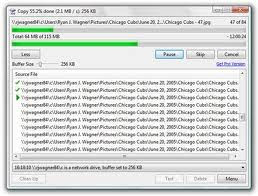
Hey friends...As we all know that our default tool for copying and moving files is too slow . Sometimes if you are moving large files, you just get annoyed by the time it will take. Even it happens that the computer hangs if you are moving multiple files at the same time. And this delay is more annoying when you are using Windows Vista or Windows 7. But there is a solution to get rid of this. There are some awesome third party tools which are much better then the default MS copying tools as they are capable of copying files with a super fast speed.
There are many third-party softwares that can do this job for you. But here we are providing the top copying Managers that are much faster,easy to use,and free of cost.
I have found a lot but I am going to provide you the best ones.


Super Copier 


Super Copier is the Best super fast speed copier I have ever seen. I am currently using this amazing utility. It is very small and a Light-weight Program. It will run in the system tray and does not eats up your much memory and CPU usage. You can even Pause,resume, schedule you copying processes. Super copier helps a lot in increasing your copying speed.
Whenever any error occurs during the copying process, it will show you the actual reason behind the error.

Super Copier

Download Here  click


TeraCopy


TeraCopy is also one of the most used copy manager.  The best part of this utility is that it can resume file transfer even if any error occurs during the copying process. When you install it, it will automatically integrate into your Right click context menu.
TeraCopy

Download Here click

So, I shared the top fast copiers and shared my views about them with my own experience. You can also know about some other copiers like:

Copy Handler

Talent Copy

Extreme Copy 


plz post u r comments

continue reading

Trick to download torrents using IDM


Downloading Torrents with High Speed is a great need nowadays. As torrent files are a better alternative to download various games,softwares,movies,etc. Well, Even I sometimes feel that torrents are very slow to download files as compared to a normal download speed. The speed is too slow in any torrent files down-loader. So, I found a way to download torrent files using IDM. It is true that now you can download torrents using IDM. If you are not using IDM, them download IDM 6.07 Build 14 (latest version) of IDM from HERE.


Follow the steps to Download Torrent files using IDM:


(1.)Firstly Grab your torrent from www.torrentz.eu . Download the torrent file (.torrent) extension file of your desire.

(2.)Now after downloading the (.torrent) file, go to this website www.torcache.net
Now upload the torrent file that you had just downloaded and click on cache button.

(3.)It will show you a new generated link of your torrent file.

(4.)Copy that new link.

(5.) Now go to www.torrific.com and create a new account there. After signing up, Login into your Account.

(6.)In the text field, paste the link of the new torrent file that you had copied in Step 4 and Click onGET.

(7.) You will see all the torrent files that are present in that torrent. Now click on Initiate Bittorrent Transmission.

(8.) Now all the files have been ready to be downloaded. Click on any file that you want to download.

(9.) A new pop-up window of IDM will open.

(10.) Click on Start Downloading.


So, this trick helps to download torrents with high speed. Well, If you are having a slow torrent download speed, I strongly recommend you to use this software.

So, Enjoy downloading torrents at high speed using IDM.


So, I hope you will enjoy downloading torrents at high speed using IDM!!

continue reading

Tricks to Increase your Internet Speed

A Slow Internet Connection really costs time and makes you feel annoying. Many people ask me the ways to Increase their Internet Speed. However, it's possible to do so to some extent and Make your Internet much better then it was in the past. However, There are some tweaks and softwares that will help you to Increase your Internet Speed.
(1) Speed up your Internet Speed by 20%:


This is the first method to speed up  your internet. This method might be known to most of the people. But still I want to share this with you!! However, this method help you to increase your Internet Speed by 20%. Just follow the steps below:

Go to start.
Go to run.
Type gpedit.msc and hit enter.
Expand Administrative Templates.
Then Network.
Then QoS Packet Scheduler.
A new list will appear. Click on Limit Reservable Bandwidth.
Just Disable it.
Click on Apply.
Hit OK. You're done!!
Now just restart your Computer. You will experience a change in your Speed.


(2) Free Accelerators to Speed up your Internet:

In this second method, I am providing Internet Accelerators to Speed up your Internet. However, these are some small utilities that will tweak and optimize your internet settings for you, and thereby, Speeding up your Internet.

Ashampoo Internet Accelerator

This utility comes with an awesome tool that will optimize and tweak your internet settings within a single click. It also has a feature to test your Connection speed.
You can also try other accelerators like:

Speed Connect 
Internet Accelerator


(3) Use TCP Optimizer to Boost Speed

TCP Optimizer is a Small tool helping you to optimize and tune up your Internet Speed.

                                        Download TCP Optimizer

(4) Ways to Boost Speed in Firefox

You can use Speedyfox to increase your Internet Speed.
You can view our one of our previously posted article for this.
Speedyfox: Firefox Speed Booster

And you can even Improve your youtube performance in Firefox and all other browsers.
You can view our one of our previously posted article for this.

Improve youtube performance in Firefox and all other Browsers

You can even improve your Firefox Internet speed to a great extent by making some changes into it.


(5) Some tips from my side:

  1. Use IDM to boost your Downloading Speed.
  2. Try Downloading torrents using IDM.
  3. Use a Good Anti-virus in your Computer.
  4. Remove  unwanted add-ons,softwares,unwanted files from your computer.
  5. Update your drivers periodically.
  6. Keep a good maintenance of your Computer.


the good way is upgrade u r broadbant plan

continue reading

Boost youtube performance in Firefox and other browsers

Watching youtube videos without buffering is a great need because every youtube lover wants it.Is your Browser too slow that it plays youtube videos as slow as a turtle???. Sometimes I get frustrated by the pauses that it takes after each 3 seconds. Sometimes this makes me bang my computer. It is a big headache for the youtube lovers. But I found the solution for this. However,this trick it will enhance your youtube video's speed to a convenient way and make your entertainment while watching videos more reliable!!!


Steps to Improve your youtube Performance in Firefox:-

  1. Open Firefox and in the address bar, type "about:config" and hit enter.
  2. It will show you a warning message. Just ignore it and click on I'll be careful, I promise.
  3. Then in the filter text entry bar, type "browser.sessionstore.intervalyou will see something like  below.
Improve youtube performance in Firefox

     Just Double click on it and change its value to 120000.
        Improve youtube performance in Firefox

Software to Boost youtube performance in all other browsers:-

There is a software know as Speedbit Video Accelerator. It ill help you to eliminate buffering and help you enjoy watching videos. It will work for all browsers like Firefox and Chrome.


 DOWNLOAD HERE
Also make sure that you are using the latest version of Adobe flash Player.

So, I hope you have enjoyed my article!!!
Kindly share your views....

continue reading